
How to use MapCaller
Install MapCaller, connect your account, and manage calls, WhatsApp contacts, results, comments and contact history directly while working in Google Maps.
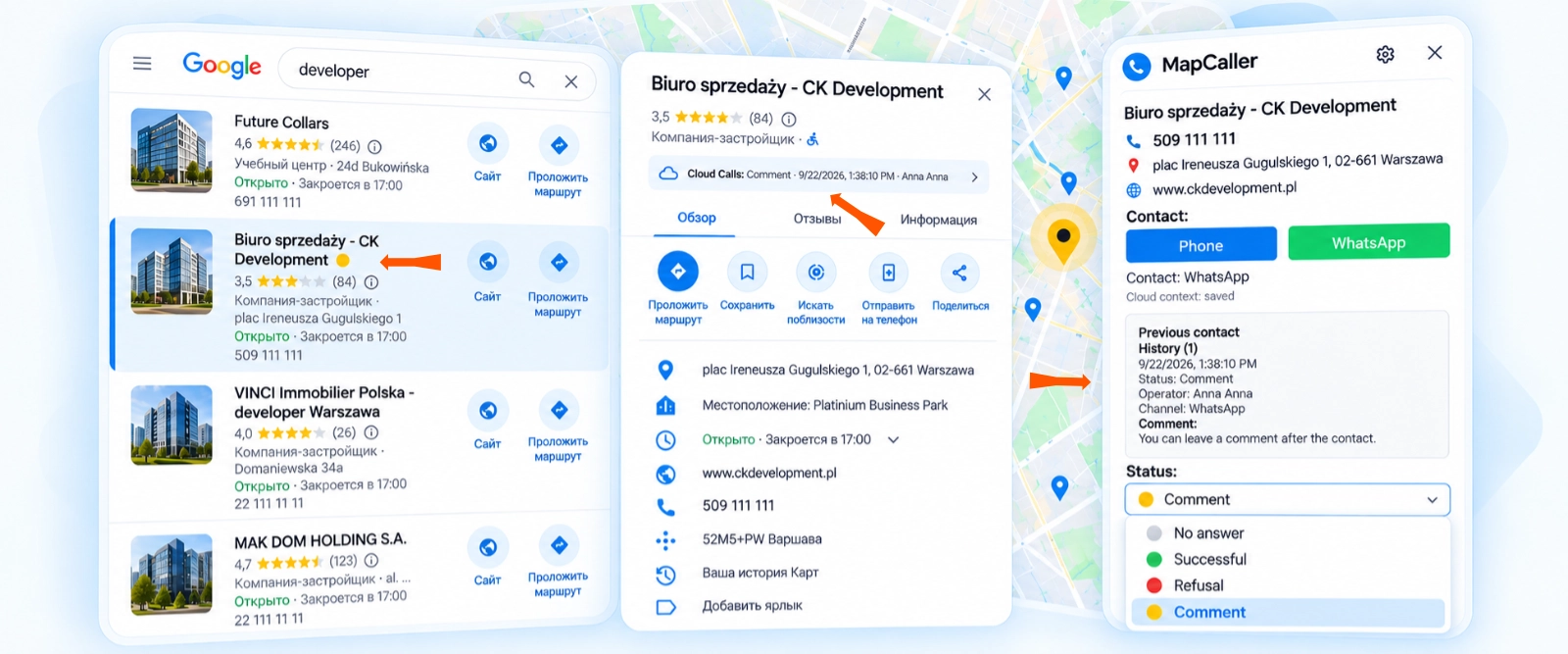
Install & Connect MapCaller
Install MapCaller, connect your Google Account and complete your setup.
-
1
Install MapCaller
Install the MapCaller browser extension from the Chrome Web Store.
Install MapCaller -
2
Open Google Maps
Search for the type of businesses you want to contact, then choose a business from the results list and open its business card.
Open Google Maps -
3
Open MapCaller
Click the phone icon next to the business phone number. MapCaller opens for that business.
-
4
Sign in with Google
Sign in with the Google Account you want to use with MapCaller.
Your current device is registered automatically. Each user can have up to 2 active devices. -
5
Accept applicable legal terms
Review and accept the applicable account-level documents.

Complete your path
Continue based on your role in the organization.
I’m an Owner
Create an organization, activate its subscription and start working in MapCaller.
-
1
Create organization Enter your organization or workspace name.
-
2
Commercial acceptance Review and accept the commercial terms for your organization.
-
3
Choose subscription quantity Select the paid user capacity your organization needs.
-
4
Complete Stripe Checkout Review your subscription quantity, enter or confirm the required billing and payment details in Stripe Checkout, and complete the payment.
-
5
Subscription activation confirmed MapCaller waits for provider confirmation and activates paid access after the payment is confirmed.
-
6
Return to MapCaller Continue after paid MapCaller access has been confirmed.
-
7
Ready You can start using MapCaller.
How Billing works Understand subscription quantity and paid user capacity.
- Increasing subscription quantity during the current billing period may result in provider-calculated prorated charges for the remaining period.
- A quantity decrease takes effect from the next billing period.
- Removing a Team member does not automatically reduce subscription quantity.
Add an Operator Invite another user to your organization.
The Google Account specified in the invitation is the identity of that Operator. The Operator must use that exact Google Account when joining the organization.
I’m an Operator
Join an existing organization using an invitation from its Owner.
-
1
Open the invitation link Use the invitation sent by the organization Owner.
-
2
Sign in with the invited Google Account Use the exact Google Account specified in the invitation.
-
3
Complete account-level Legal if required If you already completed account-level Legal in the common setup above, continue directly to Accept invitation.
-
4
Accept / join the invitation Join the Owner’s organization.
-
5
Access check MapCaller checks whether your organization has active MapCaller access.
Account-level Legal is not a second acceptance step. If it was already completed in Step 5 above, you do not complete it again. If it is still required, MapCaller requires it after Google sign-in and before the invitation can be accepted.
Return to MapCaller and start working.
ReadyWaiting for Owner.
Do not pay. The Owner must activate the organization’s MapCaller access.The invitation can only be accepted with the exact Google Account specified by the Owner.
Signed in with the wrong Google Account? Switch to the exact account shown in the invitation.
Sign out or switch Google Accounts and sign in with the exact Google Account shown in the invitation.
The invitation cannot be accepted with another Google identity.
Need to use a different Google Account permanently? This is different from simply signing in with the wrong account.
If the Operator has already joined the organization and now needs to use a different Google Account, the Owner removes the existing Team member.
Set up your working environment
A few things to check before you start working.
Your role and access Understand what you can do based on your role.
- Owner: Manages the organization, subscription and team invitations — and can also use MapCaller normally for calls, WhatsApp, statuses, comments and History.
- Operator: Works with contacts inside the Owner’s organization. An Operator does not manage the organization’s subscription payment.
- Important: Invited Operators must sign in with the exact Google account that received the invitation.
- Working alone? The Owner is also the working user. No Operator is required.
Devices Use up to 2 active devices per user.
- Each MapCaller user can have up to 2 active devices.
- A new device is registered automatically after sign-in.
- To replace a computer, open Customer Cabinet → Devices, revoke a device you no longer use, then sign in on the new computer.
Phone calling Set up your calling environment.
MapCaller does not place the call itself. It adds a contact-management step before the normal operating-system call handoff.
When you click Phone, MapCaller passes the selected number to the calling mechanism configured on your computer.
Test a normal phone link outside Google Maps. If your computer opens the correct calling app or connected phone, your system calling setup is ready.
After MapCaller is installed, the Google Maps phone workflow opens MapCaller first. Clicking Phone inside MapCaller then passes the number to the normal operating-system calling flow.
Some phone-to-computer calling setups require Bluetooth.
Most modern laptops already include Bluetooth. Some desktop computers may require a built-in Bluetooth module or a compatible USB Bluetooth adapter, depending on the calling setup.
WhatsApp How WhatsApp works with MapCaller.
When you click WhatsApp, MapCaller passes the selected business number to WhatsApp.
Your browser may open WhatsApp Web or offer to open the WhatsApp desktop app.
If the number is registered with WhatsApp, its chat opens. You write the message or start the WhatsApp call yourself.
WhatsApp itself informs you that the number is unavailable.
Session and sign-in What to know about your session.
If Customer Cabinet asks you to sign in again after the web session expires, use the same Google account and continue normally.
Use MapCaller
Use MapCaller directly in Google Maps to manage contacts and results.
Open business context Open MapCaller for a business.
You have Google Maps search results open.
Choose a business from the results list and click the phone icon next to its phone number.
MapCaller opens with the selected business context and any existing MapCaller History.
Phone Call a business.
You want to call the selected business.
Click Phone in MapCaller.
Your operating system opens its normal calling dialog or calling application with the selected number. Confirm the call there. Your configured calling app or connected phone then places the call.
WhatsApp Open WhatsApp for a business.
You want to contact the selected business through WhatsApp.
Click WhatsApp.
WhatsApp Web or the WhatsApp app opens for the selected number. If the number has a WhatsApp account, its chat opens. Write the message or start the WhatsApp call yourself.
Status + Comment Add a status and comment.
After a call, WhatsApp contact or contact attempt.
Choose the result from the Status dropdown and add a comment if needed.
The status and comment are ready to be saved.
Save Save the contact result.
You have selected the correct result and added any comment you want to keep.
Click Save.
MapCaller saves this contact result, status and comment to this business’s History.
History and team visibility See previous results and shared history.
See saved activity in the Google Maps results list
MapCaller indicators in the Google Maps results list help you recognize businesses that already have saved contact activity and the current saved result.
Open the business to see the complete record
Open the business again to see its saved contact records, statuses and comments in MapCaller History.
Saved contact results are available to other authorized users in the same MapCaller organization when they work with that business.
What happens when…
Common situations and what to do.
Calls & WhatsApp Common issues with calling and WhatsApp actions.
No phone number The normal phone-triggered MapCaller workflow may not be available.
If Google Maps does not provide a usable phone number for the business, the normal phone-triggered MapCaller workflow may not be available.
In this case there may be no phone action to open MapCaller for that business.
A system dialog appears after Phone This is your operating system or calling app. Continue in the normal system dialog.
MapCaller passes the selected phone number to the normal calling mechanism configured on your computer.
Your operating system or calling app may ask you to choose which app or connected device should handle the number. Continue in that normal system dialog.
Phone does not start a call Check your system calling handler or connected phone setup.
MapCaller does not place the call itself. Test a normal phone link outside Google Maps.
If your computer does not open the expected calling app or connected phone, check the calling setup in your operating system.
If ordinary phone links work correctly but MapCaller Phone still does not hand off the number, reopen MapCaller and contact MapCaller Support if the problem continues.
WhatsApp opens but sends nothing This is expected. MapCaller does not send messages automatically.
MapCaller only passes the selected number to WhatsApp. You write and send the message yourself, or start the WhatsApp call yourself.
This number is not available on WhatsApp WhatsApp cannot open an available contact for this number.
WhatsApp determines whether the selected number can be used there.
If WhatsApp reports that the number is unavailable, MapCaller cannot open a chat for it. Try another available contact method for that business.
Devices & session Computer setup, device limits and sign-in issues.
New computer Sign in normally. The device is registered automatically if you are below the device limit.
Sign in with your usual Google Account. If your user is below the active-device limit, MapCaller registers the new device automatically.
Device limit reached Open Customer Cabinet → Devices and revoke a device you no longer use.
Open Customer Cabinet → Devices, revoke a device you no longer use, then sign in on the new computer.
Session expired Sign in again with the same Google Account.
If MapCaller shows “Session expired”, this is a normal re-authentication, not a new registration.
Sign in again with the same Google Account. Your organization, registered device and saved History remain unchanged.
Team & invitations Invitations, organization access and team management.
Operator sees Waiting for Owner Do not pay. The Owner must activate the organization’s MapCaller access.
Your membership may already be valid, but the organization does not yet have active MapCaller access.
Do not start a payment as an Operator. The Owner must activate the organization’s subscription.
After the Owner activates MapCaller access, return to the Extension and use Check again if it is shown. MapCaller will recheck the organization and, when access is active, move to Ready.
Invitation does not work Check the invited Google Account, invitation state and organization access.
Use the recovery that matches what happened:
Sign out or switch accounts and sign in with the exact Google Account specified in the invitation.
The invitation can no longer be used. Ask the Organization Owner to create a new invitation.
If the invitation was already accepted successfully, your organization membership already exists.
Sign in normally with the invited Google Account and continue to MapCaller. You do not need another invitation.
Do not continue using that link. Return to sign-in instead.
If you still need access to the organization, contact the Organization Owner or MapCaller Support so the correct next step can be confirmed.
The organization is currently unavailable for MapCaller access.
The invitation cannot grant temporary or limited access. Contact the Organization Owner. Access can continue only after the organization becomes eligible again.
Operator needs another Google Account If the Operator already joined, the Owner must replace the membership.
If the Operator has already joined the organization and now needs to use a different Google Account, the Owner removes the existing Team member and creates a new invitation for the new Google Account.
Saving & billing Statuses, History and subscription questions.
Status selected but History is empty Make sure the contact result was saved.
Selecting a status or writing a comment is not the same as saving the contact result. Complete the Save action so the result appears in History.
Team became smaller but subscription quantity did not decrease Team membership and Billing quantity are managed separately.
Removing a Team member does not automatically reduce subscription quantity.
If the Owner needs fewer paid users, open Customer Cabinet → Billing and reduce the subscription quantity separately.
The lower quantity takes effect from the next billing period.
Still need help?
If the steps above do not solve the problem, contact MapCaller Support.